AI Commands and Prompts
Understanding Elumity's AI Chat Interface
Elumity's AI chat provides intelligent assistance for analyzing your research documents, answering questions about your library content and supporting your academic workflow. Unlike generic AI tools, Elumity's AI can access your specific research materials and provide contextual responses based on your actual documents and academic work.
The AI chat integrates seamlessly with your research workflow, offering both document-specific analysis and general academic assistance while maintaining the context of your research projects.
Accessing the AI Chat
The AI chat interface is available throughout Elumity via the stars icon located in the upper right corner, next to your profile picture.

Click the stars icon to open the AI chat in a floating pop-up window where you can ask questions, request analysis, or get assistance with your academic work. The floating design allows you to continue working in Elumity while maintaining access to AI assistance.
Adding Documents to AI Context
To enable the AI to analyze specific documents from your library, you need to add them to the AI context before asking questions.
Selecting Documents for Analysis
Navigate to your Files and locate the file you want the AI to analyze. Click the three-dot menu (⋯) next to any supported document, typically PDFs and other text-based research materials.
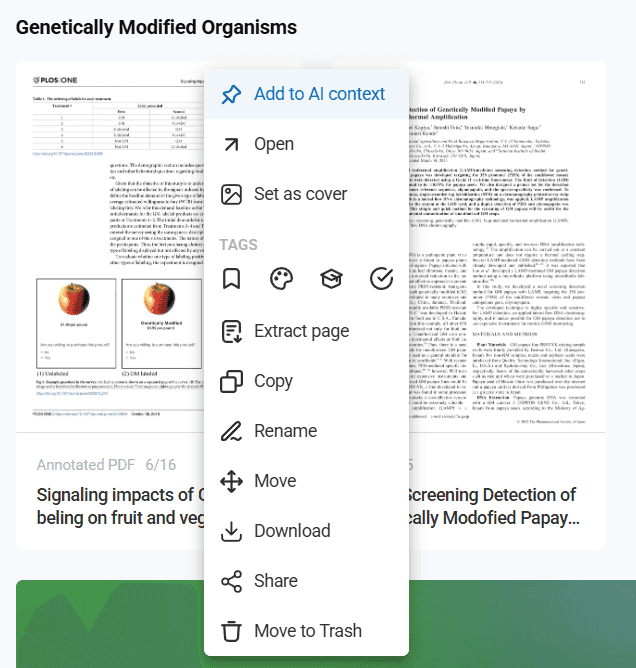
Select "Add to AI context" as the first option in the menu. This adds the document's content to the AI's working memory for the current session, enabling detailed analysis and question-answering about that specific material.
Working with Multiple Documents
You can add multiple documents to the AI context simultaneously, enabling comparative analysis, cross-document synthesis and comprehensive research assistance across your entire document collection.
The AI maintains context for all added documents throughout your session, allowing complex queries that reference information from multiple sources in your library.
AI Chat Interface Options
The AI chat window includes several configuration options that control how the AI processes your requests and generates responses.
Research and Web Integration
Access the settings within the AI floating window by clicking the options or settings icon. Here you can control whether the AI should:
Research the web - Enables the AI to supplement its analysis with current online information and recent research findings beyond your personal library.
Stay within your library - Restricts the AI to analyzing only the documents you've added to context, ensuring responses focus exclusively on your research materials.
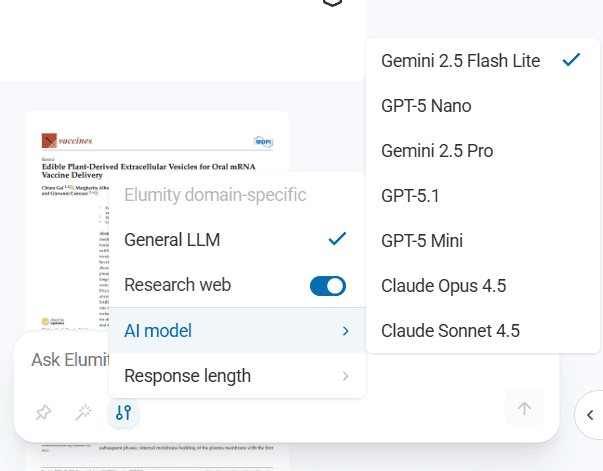
This flexibility allows you to choose between comprehensive research assistance and focused analysis of your existing materials depending on your current needs.
AI Model Selection
Elumity supports multiple advanced AI models, each with different strengths for academic work:
Available Models:
- Gemini 2.5 Flash - Fast responses for quick questions and analysis
- GPT-4o Nano - Efficient processing for routine academic tasks
- Gemini 2.5 Pro - Advanced reasoning for complex research questions
- GPT-4.1 - Comprehensive analysis and detailed responses
- GPT-4o Mini - Balanced performance for general academic assistance
- Claude Opus 4.5 - Sophisticated analysis and nuanced reasoning
- Claude Sonnet 4.5 - Efficient academic writing and research support
Choose models based on your specific needs: faster models for quick questions, more powerful models for complex analysis and synthesis tasks.
Response Length Management
Control the length of AI responses to optimize your token usage and get appropriately detailed answers for different types of questions.
Response Length Options:
- 50 words (default) - Concise answers that preserve your AI token limit
- 120 words - Moderate detail for standard questions
- 250 words - Comprehensive responses for complex topics
- 500 words - Detailed analysis for in-depth research questions
- No limit - Complete responses regardless of length
Shorter responses consume fewer tokens, allowing more AI interactions within your usage limits, while longer responses provide more comprehensive analysis when needed.
AI Chat Window Management
The AI chat interface provides flexible window management options to integrate with your research workflow effectively.
Floating Window Mode
The default floating window allows you to position the AI chat anywhere on your screen while continuing to work with your documents or cards.
Sidebar Integration
Click the dock icon in the upper right corner of the AI chat window to integrate it into Elumity's right sidebar, creating a permanent AI assistance panel alongside your regular interface.
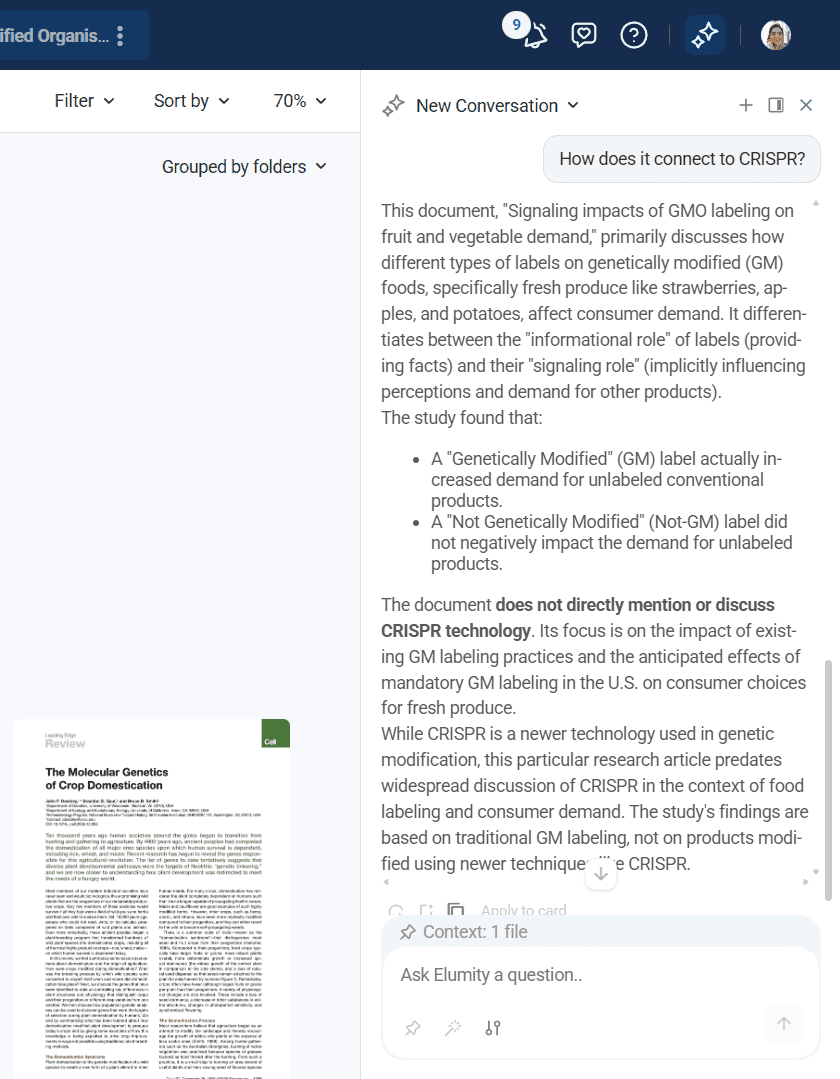
Docked mode is particularly useful for extended AI sessions or when you need continuous access to AI assistance while working on complex research tasks.
Session Management
Use the "Start new chat" option in the upper right corner to begin fresh AI sessions with cleared context. This is helpful when shifting between different research projects or when you want to change your document context.
Apply to Card Feature
When you have a Knowledge Card open while using the AI chat, responses can be directly integrated into your card content for permanent capture and future reference.
Automatic Card Integration
After receiving an AI response that contains valuable insights or analysis, look for the "Apply to Card" button at the end of the AI response.
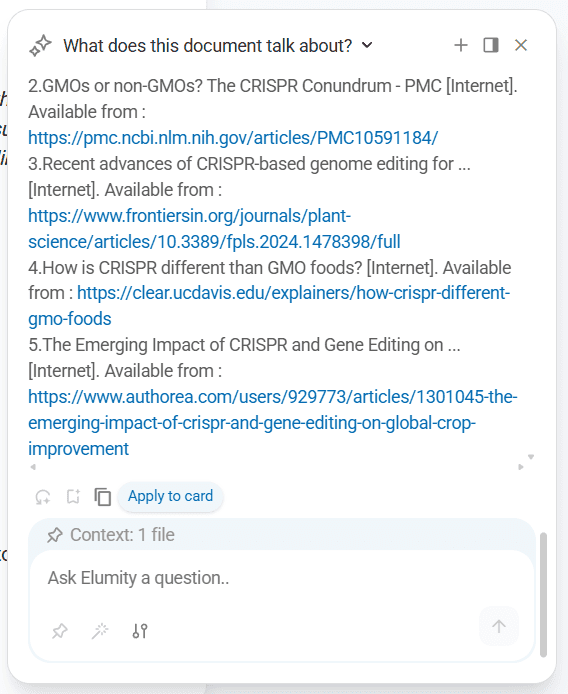
Click "Apply to Card" to automatically transfer the AI's response into your open Knowledge Card with appropriate formatting that maintains readability and academic presentation standards.
Formatted Integration
The Apply to Card feature automatically formats AI responses appropriately for Knowledge Cards, including proper heading structures, organized content layout and academic presentation that integrates seamlessly with your existing card content.
This integration maintains the connection between AI-assisted analysis and your permanent research notes, ensuring valuable insights become part of your long-term knowledge base.
Effective AI Prompting Strategies
Develop effective prompting techniques to maximize the value of Elumity's AI assistance for your academic work.
Document-Specific Queries
When you've added documents to AI context, ask specific questions about their content:
- "What are the main methodological limitations discussed in this study?"
- "How do the findings in these three papers compare regarding treatment effectiveness?"
- "Summarize the theoretical framework used in this research"
Research Synthesis Questions
Use the AI to help synthesize information across multiple documents:
- "What are the key debates in this research area based on these papers?"
- "Identify research gaps mentioned across these studies"
- "Compare the methodological approaches used in these different papers"
Academic Writing Support
Request assistance with academic writing and analysis:
- "Help me outline the main arguments for a literature review on this topic"
- "What are potential counterarguments to the position presented in this paper?"
- "Suggest ways to improve the clarity of this methodology section"
Privacy and Academic Integrity
Understanding how Elumity's AI handles your research materials ensures appropriate use within academic integrity guidelines.
Document Processing
Documents added to AI context are processed temporarily for the duration of your session. The AI analyzes content to answer your questions but doesn't retain permanent copies of your research materials.
Academic Use Guidelines
Use AI assistance to enhance your understanding and analysis of research materials while ensuring that your academic work remains your own intellectual contribution. The AI should support rather than replace your critical thinking and original analysis.
Consider your institution's policies regarding AI assistance in academic work and ensure your use of AI tools complies with applicable academic integrity requirements.
Troubleshooting AI Chat Issues
Understanding common AI chat challenges helps maintain productive research assistance workflows.
Context Management
If the AI seems unaware of documents you've added, verify that you've successfully added them to context and that they're supported file formats for AI analysis.
Response Quality
Experiment with different AI models for various types of questions. More powerful models provide better analysis for complex research questions, while faster models work well for factual queries.
Token Management
Monitor your AI usage and choose appropriate response lengths to optimize your token allocation across research sessions. Shorter responses for simple questions preserve tokens for complex analysis tasks.
Elumity's AI chat transforms your research workflow by providing intelligent assistance that understands your specific research materials and supports your academic goals. By mastering these features, you can leverage AI assistance while maintaining scholarly rigor and academic integrity throughout your research process.