Creating Folders and the Folder Tree
Understanding Elumity's Organization System
Elumity organizes your research materials using a two-level system: Spaces contain Folders, which can contain Subfolders. This hierarchical structure helps you create logical groupings for different research projects, topics, or methodologies while maintaining clear relationships between related materials.
Think of Spaces as major research areas or projects, Folders as topics within those areas and Subfolders as specific aspects of those topics. For example, you might have a "Dissertation Research" space containing folders for "Literature Review," "Methodology," and "Data Analysis," with subfolders under each for more specific categorization.
Working Within Spaces
Before creating folders, you need to be working within a specific space. Spaces appear in your left sidebar and represent your primary organizational units - either private workspaces for individual research or group spaces for collaborative projects.
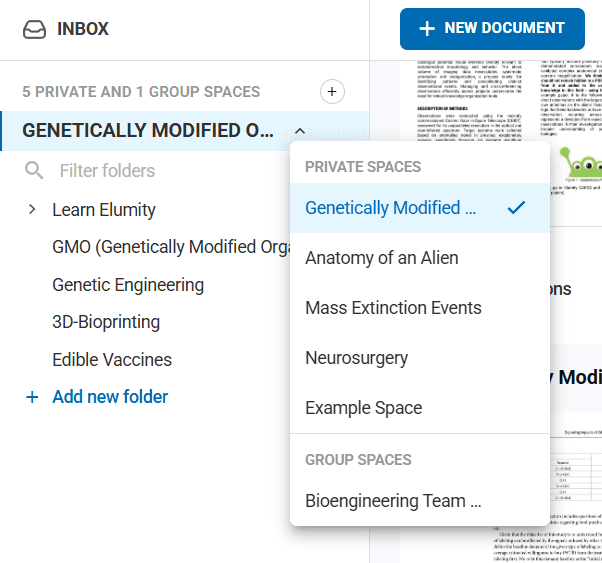
Click on any space name to enter that workspace and view its folder structure. The folder organization you create exists within that specific space, so different spaces can have completely different organizational systems tailored to their particular research needs.
Creating Your First Folder
Once you're in a space, you'll see the folder structure for that workspace in the left sidebar. At the bottom of any folder list, you'll find an "Add new folder" button.
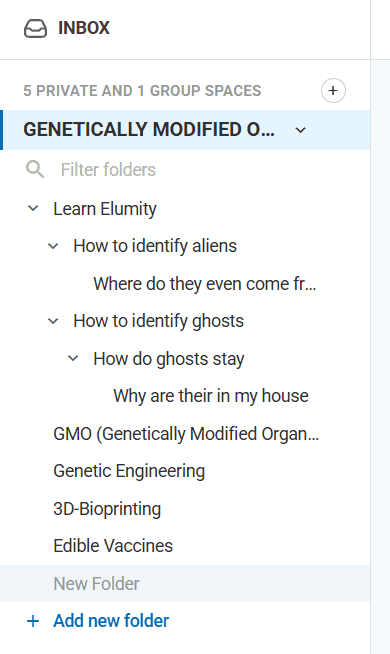
Click "Add new folder" to create a new organizational container within your current space. A text input field will appear where you can type the name for your new folder.
Choose folder names that will be clear and meaningful to you in the future. Instead of generic names like "Papers" or "Research," use specific descriptors like "Systematic Reviews," "Clinical Trial Protocols," or "Statistical Methods Papers." This specificity helps you quickly identify where to file new documents and where to look for existing materials.
After typing your folder name, press Enter or click away from the text field to save the new folder. It will immediately appear in your sidebar and become available for document organization.
Building Hierarchical Organization with Subfolders
Many research projects benefit from multiple levels of organization. Subfolders allow you to create detailed hierarchical structures within your main folder categories.
Creating Subfolders
To add a subfolder within an existing folder, locate the parent folder in your sidebar and click the three-dot menu (ellipsis) that appears next to the folder name when you hover over it.
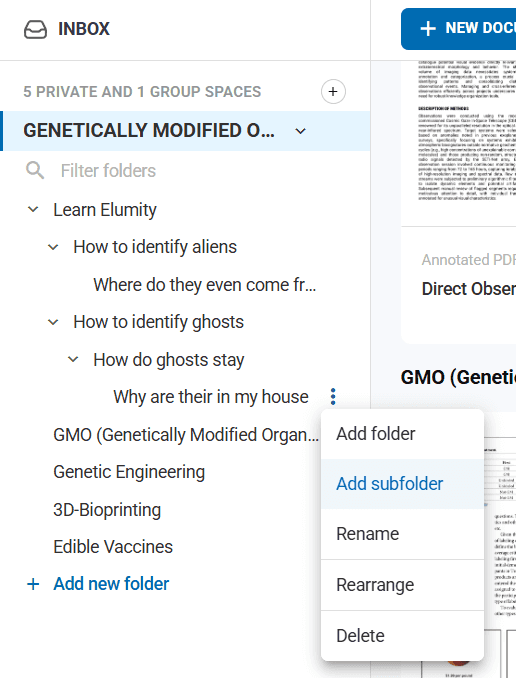
Select "Add subfolder" from the menu options. This creates a new folder nested within the parent folder, indicated by indentation in the sidebar display.
Name your subfolder using the same principles as main folders - be specific and descriptive. For example, within a "Literature Review" folder, you might create subfolders for "Systematic Reviews," "Meta-analyses," and "Individual Studies."
Understanding Folder Hierarchy
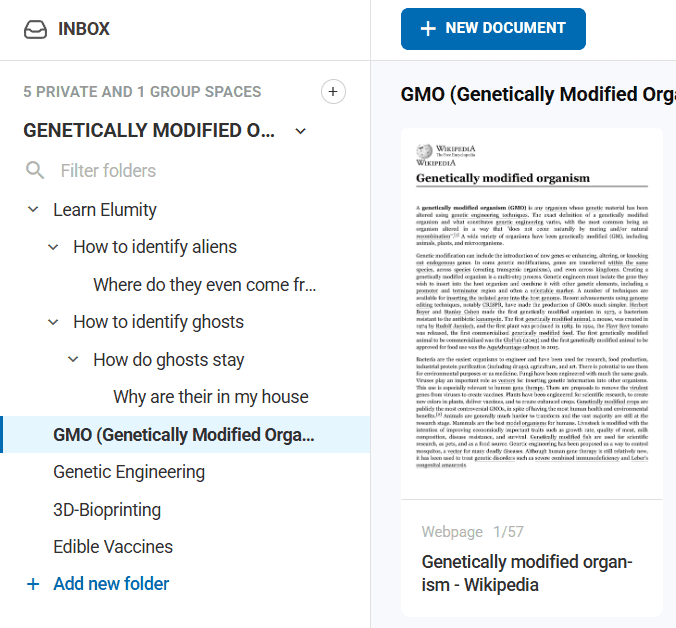
The sidebar visually represents your folder hierarchy through indentation. Main folders align with the left edge, subfolders are indented one level and sub-subfolders (if you create them) are indented further.
This visual hierarchy helps you understand the relationship between different organizational levels and makes it easier to navigate complex folder structures as your research library grows.
Managing Existing Folders
As your research evolves, you'll need to modify your organizational structure. Elumity provides several tools for managing existing folders without disrupting the documents they contain.
Renaming Folders
Research projects often shift focus or develop new directions that require updating your organizational structure. To rename a folder, click the three-dot menu next to the folder name and select "Rename."
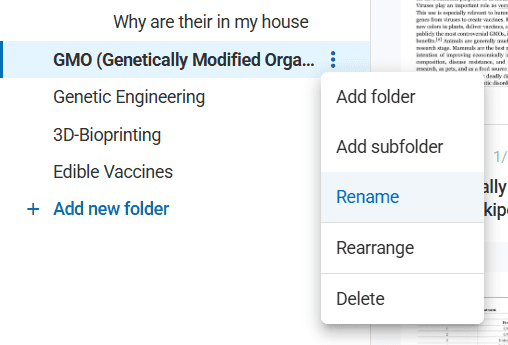
Type the new name directly in the text field that appears. Choose names that reflect the current contents and purpose of the folder. When you press Enter, the folder name updates immediately throughout the system.
Renaming folders doesn't affect the documents inside them - all your files remain exactly where they are, just under a new organizational label.
Rearranging Folder Order
The order of folders in your sidebar can be customized to match your workflow priorities. Click the three-dot menu next to any folder and select "Rearrange" to change the folder's position in the list.

This feature is particularly useful when you want frequently accessed folders to appear at the top of your list, or when you want to group related folders together visually.
Deleting Folders
When folders are no longer needed, you can remove them from your organizational structure. Click the three-dot menu next to the folder name and select "Delete."
Be careful with folder deletion, as this action affects all contents within the folder. Elumity will typically warn you about the contents before confirming deletion, giving you a chance to move important documents to other folders first.
Consider whether you want to delete the folder contents entirely or just reorganize them. If you only need to change the organizational structure, moving documents to other folders before deletion might be the better approach.
Strategic Folder Organization
Effective folder organization requires thinking ahead about how you'll use your research materials and how your projects might evolve over time.
Project-Based Organization
Many researchers find success organizing folders around specific projects or research questions. Create a main folder for each major project, then use subfolders for different aspects like literature review, data collection and analysis.
This approach works well when you're working on multiple distinct projects simultaneously and need to keep their materials separate and easily identifiable.
Topic-Based Organization
Alternative approaches focus on subject matter rather than projects. You might create main folders for different research methodologies, theoretical frameworks, or content areas, with subfolders for more specific topics within each area.
This organizational style works well for researchers who work across multiple projects within a consistent field or who want to build a comprehensive knowledge base around specific topics.
Methodology-Based Organization
Some researchers prefer organizing by research methodology - qualitative studies, quantitative analyses, systematic reviews, case studies, etc. This approach makes it easy to find examples of specific research approaches when designing new studies.
Within methodology folders, you might create subfolders based on specific techniques, sample populations, or time periods.
Folder Navigation and Usage
Understanding how to efficiently navigate your folder structure saves time and reduces frustration when working with large document collections.
Expanding and Collapsing Folders
Folders with subfolders can be expanded or collapsed in the sidebar to control how much of your organizational structure is visible at once. Click the arrow icon next to folder names to expand or collapse their contents.
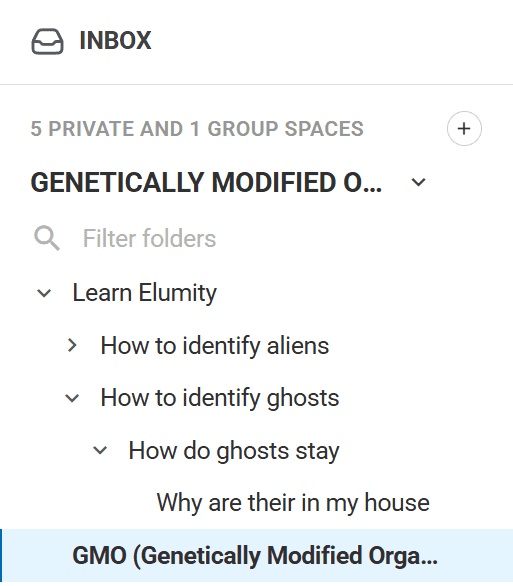
Keep frequently used folders expanded and collapse folders you access less often to maintain a clean, focused sidebar view.
Moving Between Folders
Click on any folder name in the sidebar to view its contents in the main document area. The currently selected folder is typically highlighted or marked in some way to show your current location within the organizational structure.
This navigation system helps you understand where you are within your research library and makes it easy to move between different organizational areas.
Working with Documents in Folders
Folders serve as containers for your research documents and understanding how documents interact with the folder system helps you make the most of your organizational structure.
Filing New Documents
When you upload new documents using the "New File" button, they are added to whichever folder you currently have selected in the sidebar. Make sure you're in the correct folder before uploading to avoid having to move files later.
If you upload documents to the wrong folder, you can easily move them using the document management tools in the main content area.
Moving Documents Between Folders
Documents can be moved between folders at any time without affecting their content or metadata. Select one or more documents in the main content area, then use the "Move" option from their context menu to choose a new folder location.
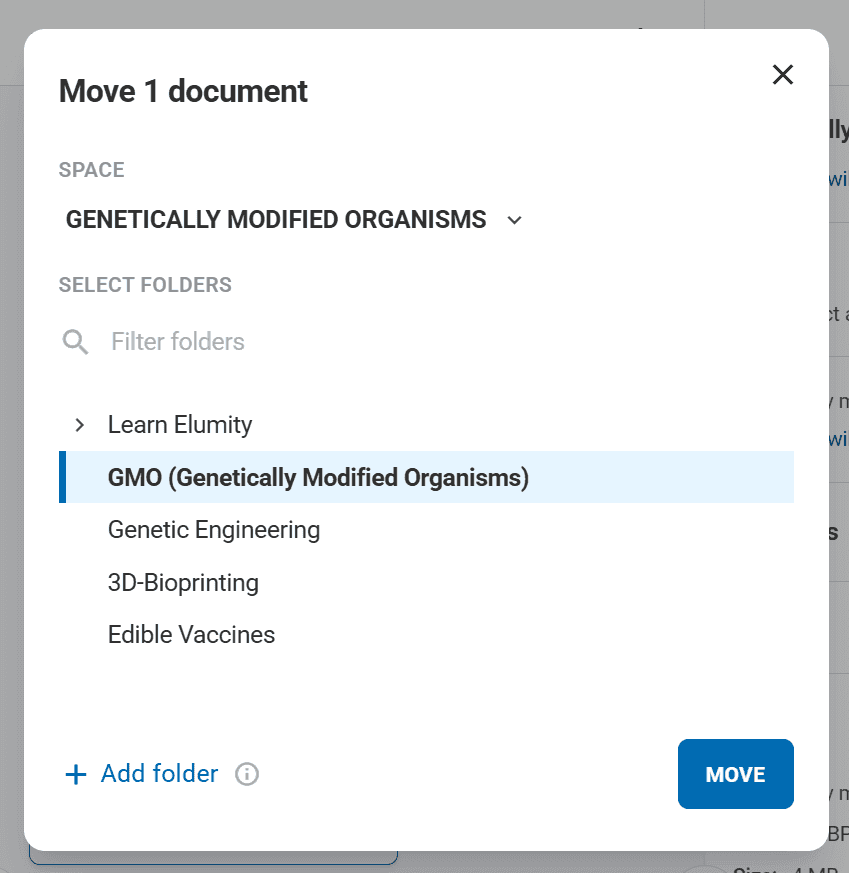
This flexibility allows you to reorganize your materials as your understanding of the research evolves or as project structures change.
Folder Organization Best Practices
Developing consistent organizational habits helps maintain an effective folder structure over time.
Consistent Naming Conventions
Establish naming conventions for your folders and stick to them across your entire library. You might choose to start all methodology folders with "Method:" or all project folders with the project acronym.
Consistent naming makes it easier to predict where information should be filed and where to look for existing materials.
Regular Organization Maintenance
Periodically review your folder structure to ensure it still matches your current research needs. As projects conclude or evolve, you might need to archive old folders, create new ones, or reorganize existing materials.
Set aside time regularly (monthly or quarterly) to clean up your organizational structure and ensure it continues to support your work effectively.
Documentation of Organization Logic
For complex folder structures, consider creating a document that explains your organizational logic. This is particularly important in collaborative spaces where other team members need to understand the filing system.
Document which types of materials go in which folders, any naming conventions you use and the reasoning behind your organizational choices.
Collaboration Considerations
When working in group spaces, folder organization becomes a team responsibility that requires coordination and communication.
Establishing Team Conventions
Before creating folders in group spaces, discuss organizational approaches with your collaborators. Agree on folder naming conventions, hierarchical structures and filing procedures to ensure everyone can contribute effectively.
Document these agreements so new team members can understand and follow established organizational patterns.
Over-Organization vs. Under-Organization
Finding the right level of organizational detail takes experience. Too many folders and subfolders can make navigation cumbersome, while too few folders can result in overcrowded containers that are difficult to browse.
Start with broader categories and add more specific subfolders as your collections grow and you better understand your usage patterns.
Duplicate Folders
Avoid creating multiple folders that serve essentially the same purpose. If you find yourself unsure which folder to use for new documents, you might have too much organizational overlap.
Regularly review your folder structure to identify and consolidate duplicative categories.
Lost Documents
If you can't find documents you know you've uploaded, check whether you might have filed them in unexpected folders. The global search function can help locate documents when you're unsure of their folder location.
Consider whether your folder structure might be too complex or unclear if you frequently have trouble locating your own materials.
Integration with Other Elumity Features
Folder organization supports and enhances other Elumity capabilities, creating a more effective overall research workflow.
Knowledge Card Organization
Knowledge Cards follow the same organizational structure as your documents. Cards created from documents in specific folders often make sense to store in the same organizational location, maintaining the relationship between source materials and extracted insights.
Reference Management
References in Elumity can be organized using the same folder structure as your documents. This parallel organization helps maintain consistency across different types of research materials.
Next Steps
Now that you understand folder organization, explore how to make the most of your organized documents:
- Uploading Files: Learn the best practices for adding new materials to your organized folder structure
- Using the Library: Discover advanced features for working with your organized document collections