Navigating the User Interface
Understanding Elumity's Interface Design
Elumity's user interface is built around the concept of interconnected workflows rather than isolated tools. Every element is designed to maintain context and relationships between your research materials, extracted knowledge and written outputs. This guide will help you understand how to navigate efficiently and leverage the platform's integrated design.
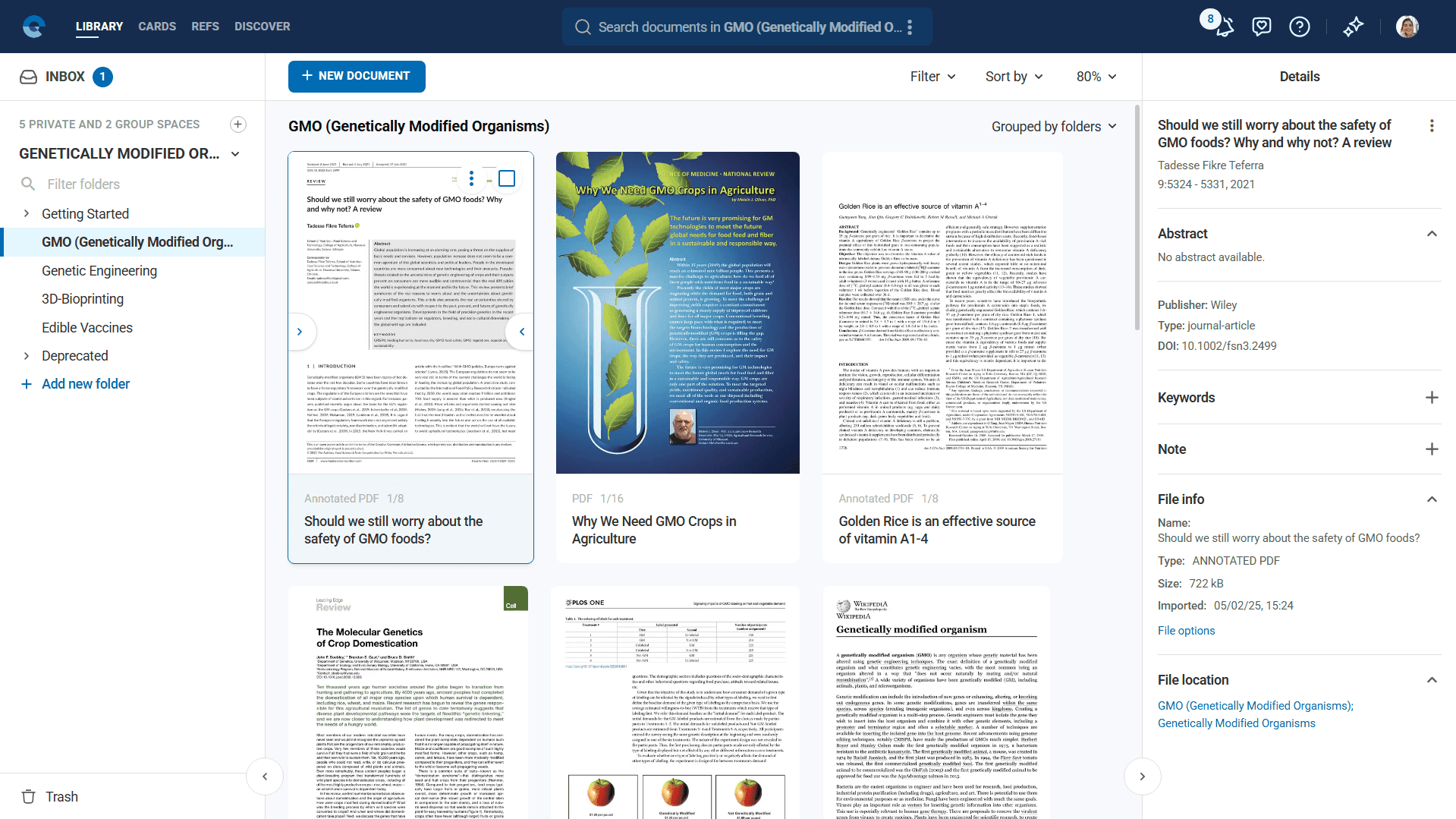
Main Navigation Bar
The primary navigation bar spans the top of your Elumity workspace and provides access to all core modules. Understanding this navigation system is essential for efficient platform use.

Core Module Tabs (Left Side)
- Files: File management hub
- References: Citation and reference management system
- Cards: Knowledge distillation and card creation workspace
- Discover: Community knowledge sharing and exploration platform
Central Tools
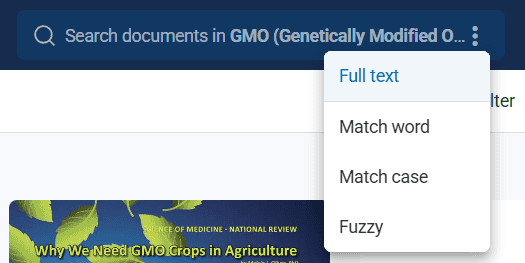
- Global Search Bar: Search across all your content including documents, Cards and references
- Search Scope: Automatically searches within your current space and connected content
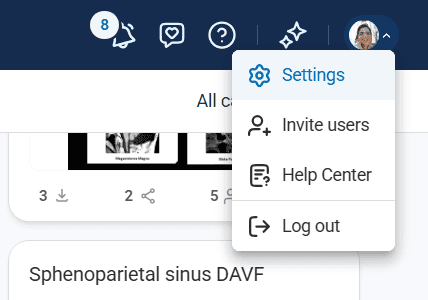
Right Side Controls
- Notifications: Bell icon showing all and unread notifications from collaborators and community interactions
- Feedback: Direct line to submit platform feedback and suggestions
- Help: Access help mode toggle, help hub and Chrome extension installation
- User Menu: Profile settings, user invitations and logout options
Workspace Organization System
Spaces: Your Primary Organizational Unit
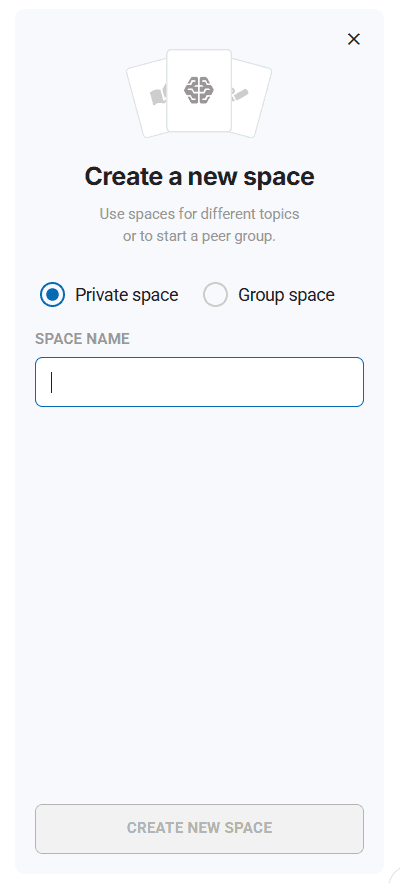
Elumity organizes all content within "Spaces" - dedicated work environments that can be either private or collaborative.
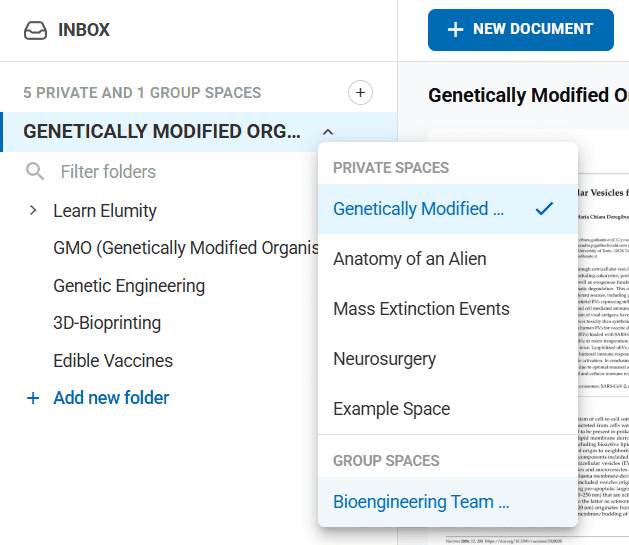
Left Sidebar Components
- Inbox: Documents and Cards shared by other Elumity users
- Private Spaces: Your individual research areas with custom folder structures
- Group Spaces: Collaborative team workspaces with shared access
- Space Counter: Visual indicator of how many private and group spaces you belong to
Space Management Functions
- Create New Space: Click the plus icon next to space counters
- Space Selection: Click on any space name to navigate and view its contents
- Folder Hierarchy: Unlimited nested folder structure within each space
Module-Specific Interface Details
Files Module Interface
The Files serves as your document command center with sophisticated organization and management tools.
Main Content Area
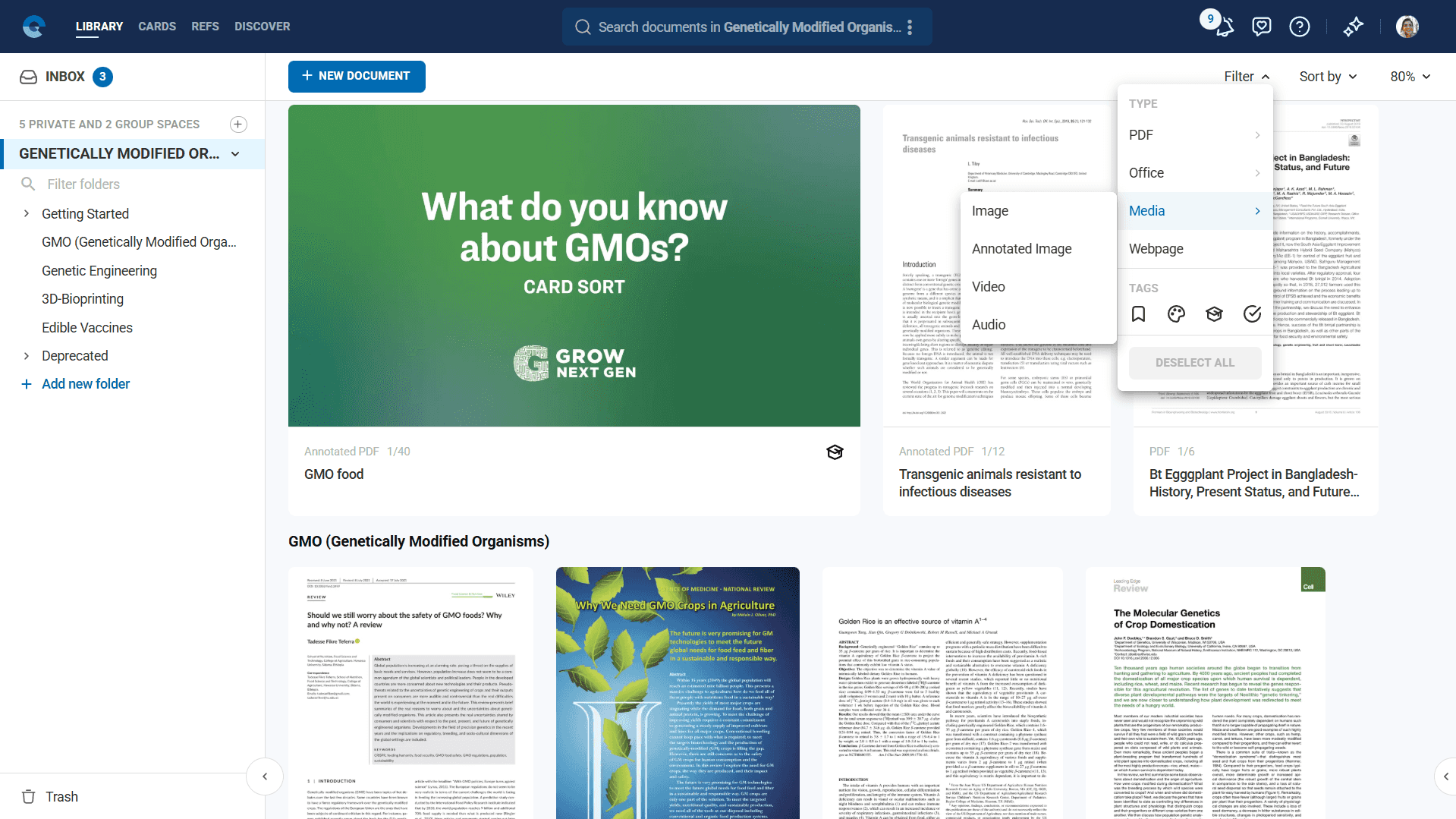
- Files Grid/List View: Visual representation of all files with thumbnails
- New Files Button: Primary action for uploading files or importing web content
- Batch Selection: Select multiple documents for bulk operations
- Document Preview: Hover over documents to see enlarged previews
Toolbar Functions
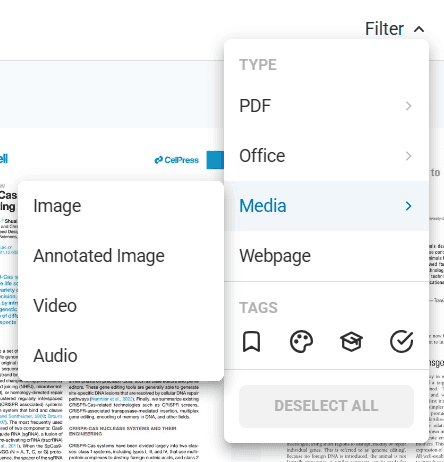
- Filtering Options:
- PDF types (plain, annotated, image)
- Office files (Word, spreadsheet, presentations)
- Media files (images, videos, audio)
- Web pages and custom tags
- Sorting Controls: Sort by space, date, title, type with ascending/descending options
- View Options: Adjust thumbnail size from 50% to 200%
Right Sidebar: Metadata Panel
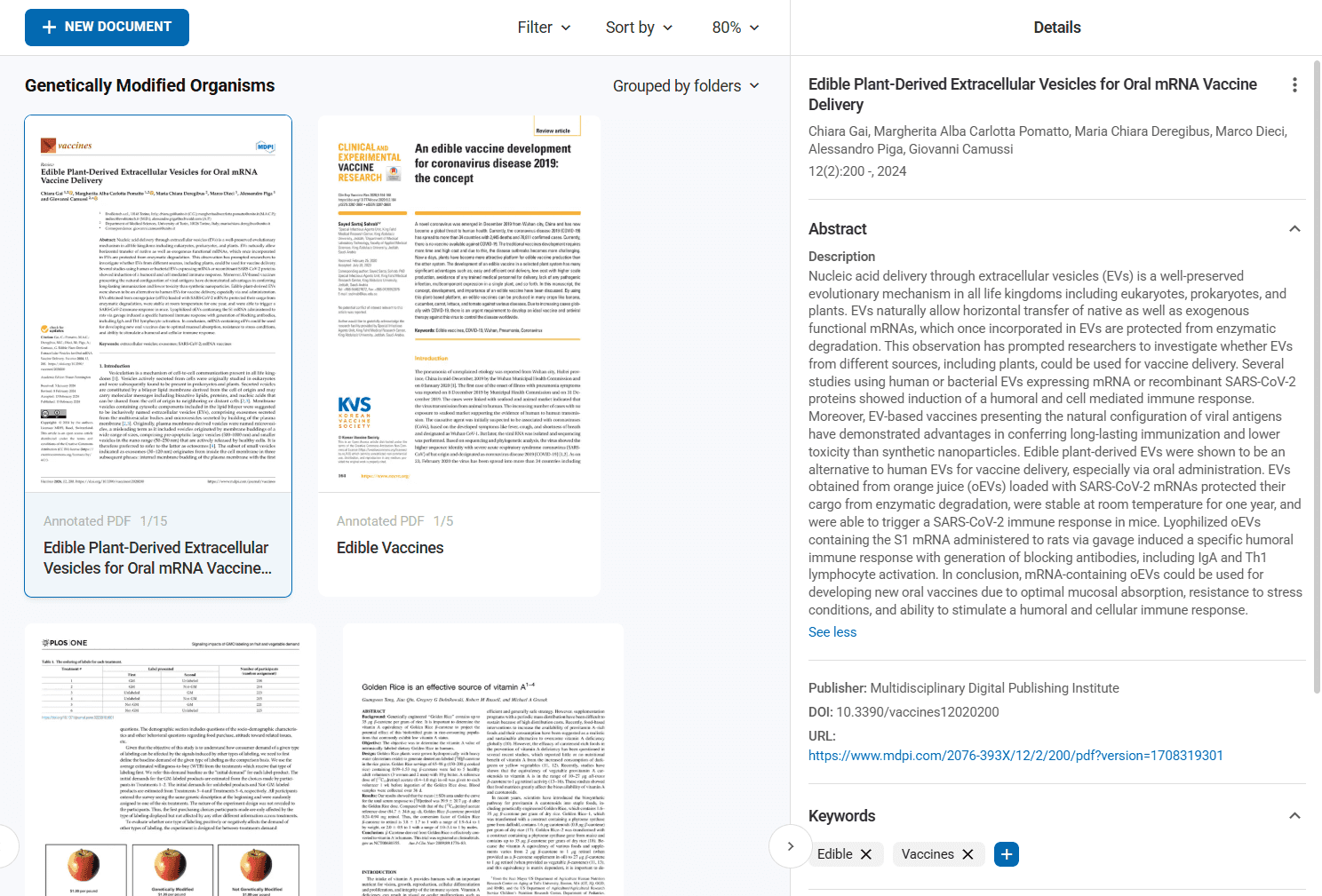
Appears when documents are selected, providing comprehensive document information and citation tools.
- Document Details: Name, abstract, DOI, URL, keywords, notes
- Citation Functions: Copy DOI, BibTeX, full references, abbreviated references
- Reference Management: Edit references, access PubMed, select citation styles
- File Operations: Rename, replace, or remove files while preserving references
- Location Information: Shows current folder and space location
References Module Interface
Dedicated reference management with academic database integration and professional citation formatting.
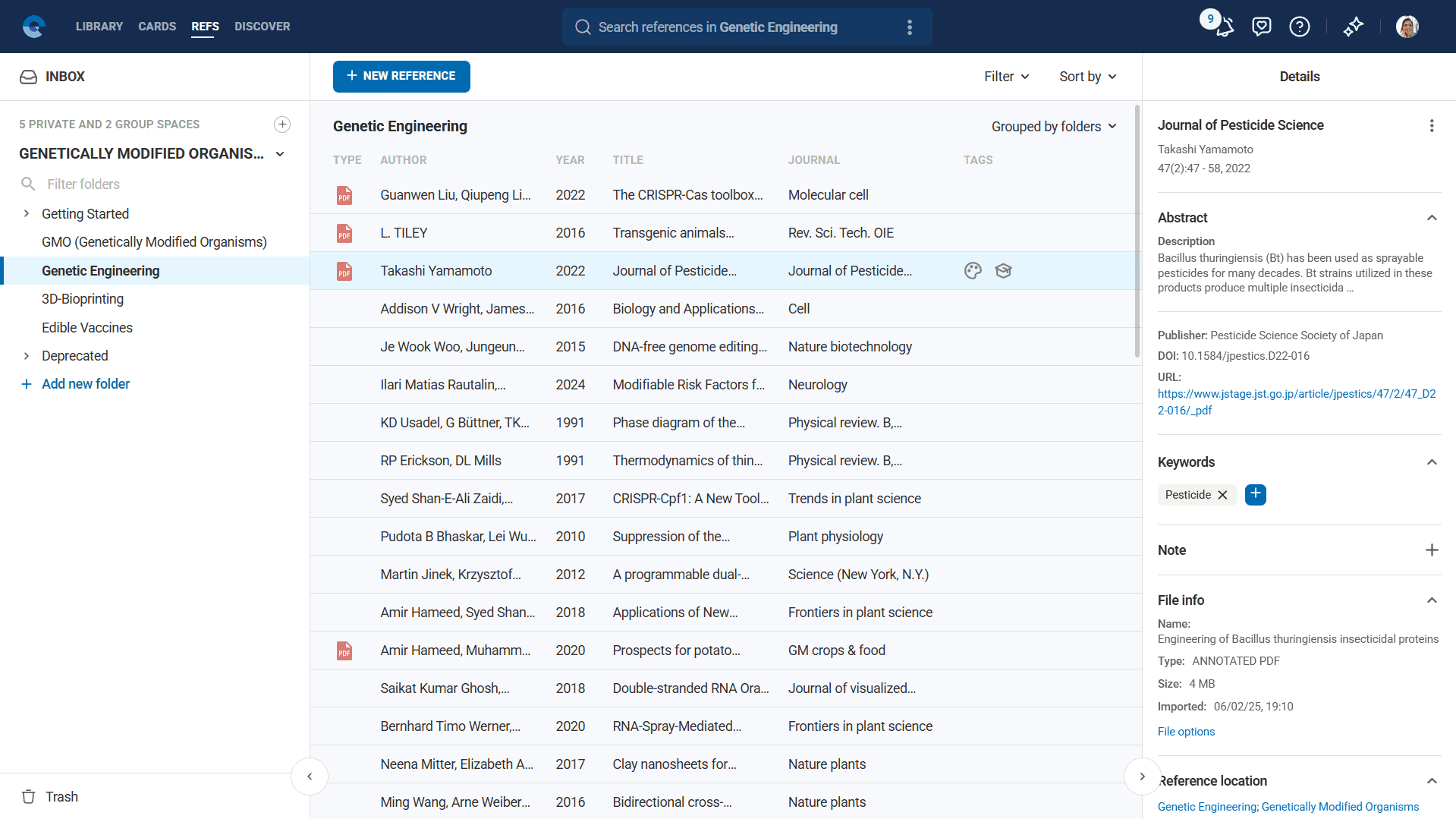
Primary Functions
- New Reference Button: Access to multiple import methods
- Reference Import Options:
- Online database search (OpenAlex, PubMed)
- File import (BibTeX, RIS formats)
- Website reference creation
- Custom reference building
- Reference Organization: Same folder and tagging system as Files
- Reference Status Indicators: PDF attachment indicators showing linked documents
Reference Management Tools
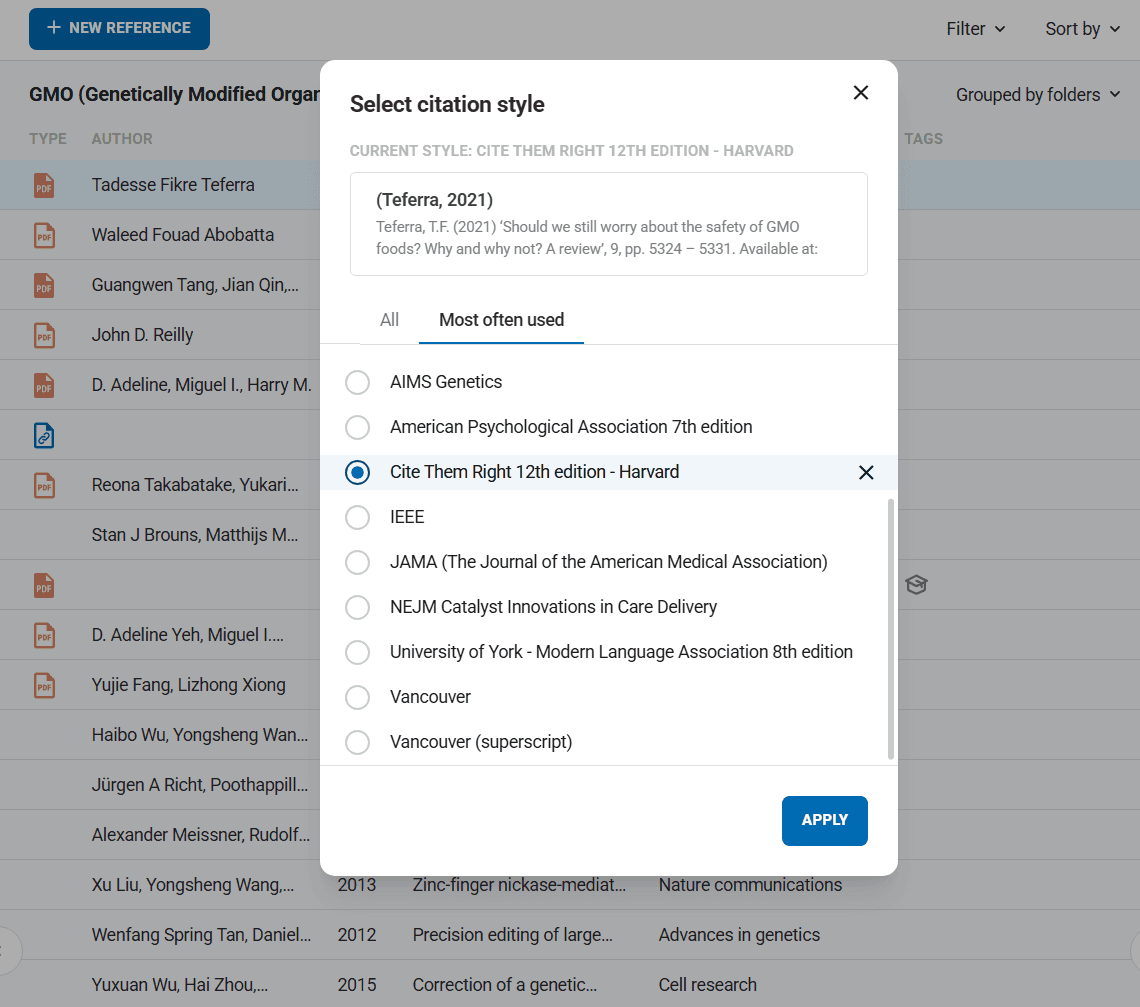
- Citation Style Selection: Choose from 10,000+ academic citation styles
- Reference Editing: Modify citation details and metadata
- Link Management: Connect and disconnect references from PDF files
- Export Options: Multiple format export for external tools
Cards Module Interface
Elumity's signature knowledge distillation workspace with AI-powered creation tools.
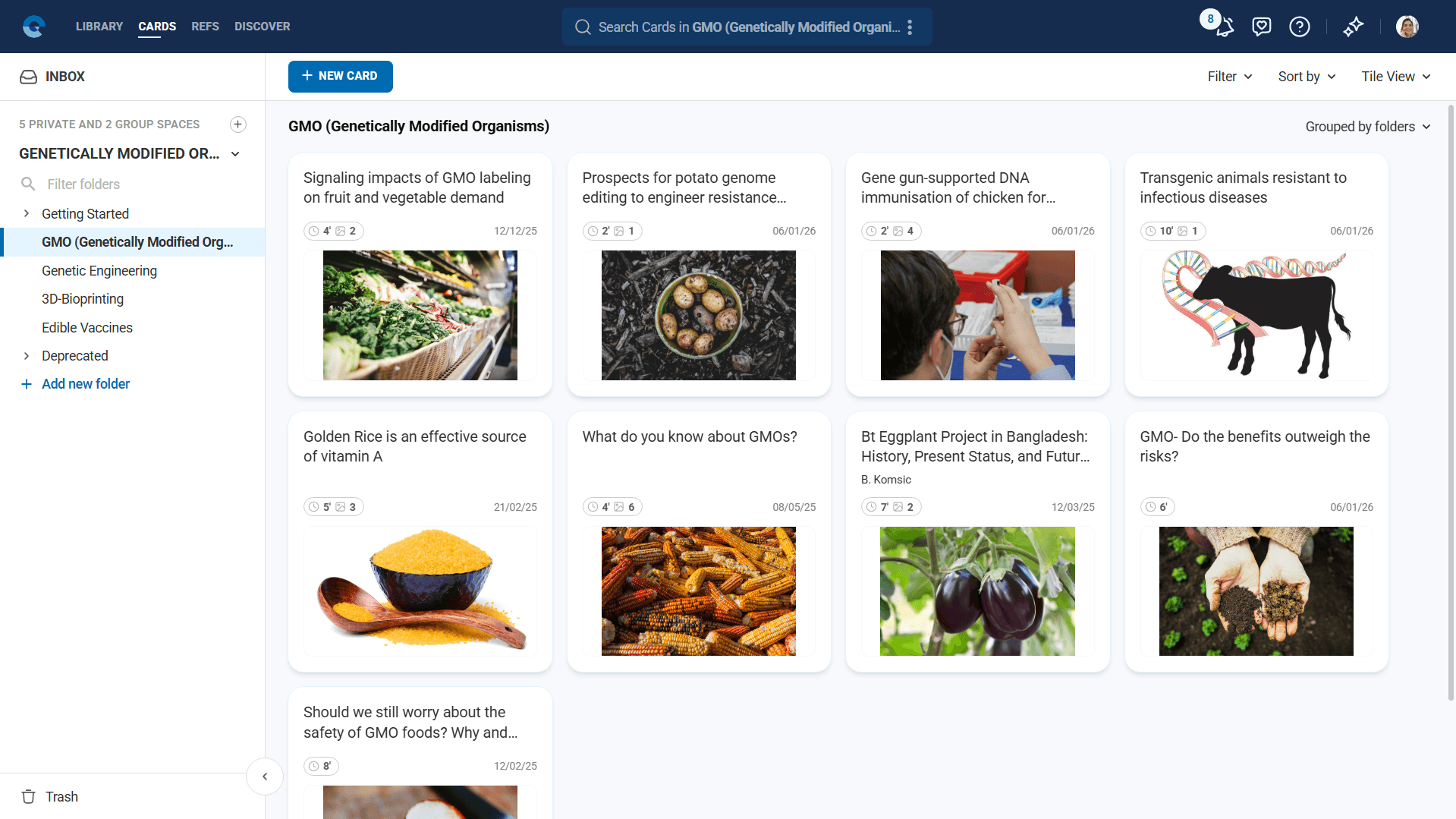
Card Overview Display
- Tile View: Grid display showing card titles, reading time, image count, creation date and cover images
- Preview Mode: Split view with card list on left, full card preview on right
- Reading Time Indicators: Automatic calculation of estimated reading time
- Cover Image System: Visual identification for quick card recognition
Card Organization Tools
- Sorting Controls: Sort by viewed, modified, created date, or title
- View Modes: Tile view, preview mode and folder grouping options
- Bulk Operations: Multi-card selection for organizing and sharing
Card Creation Interface
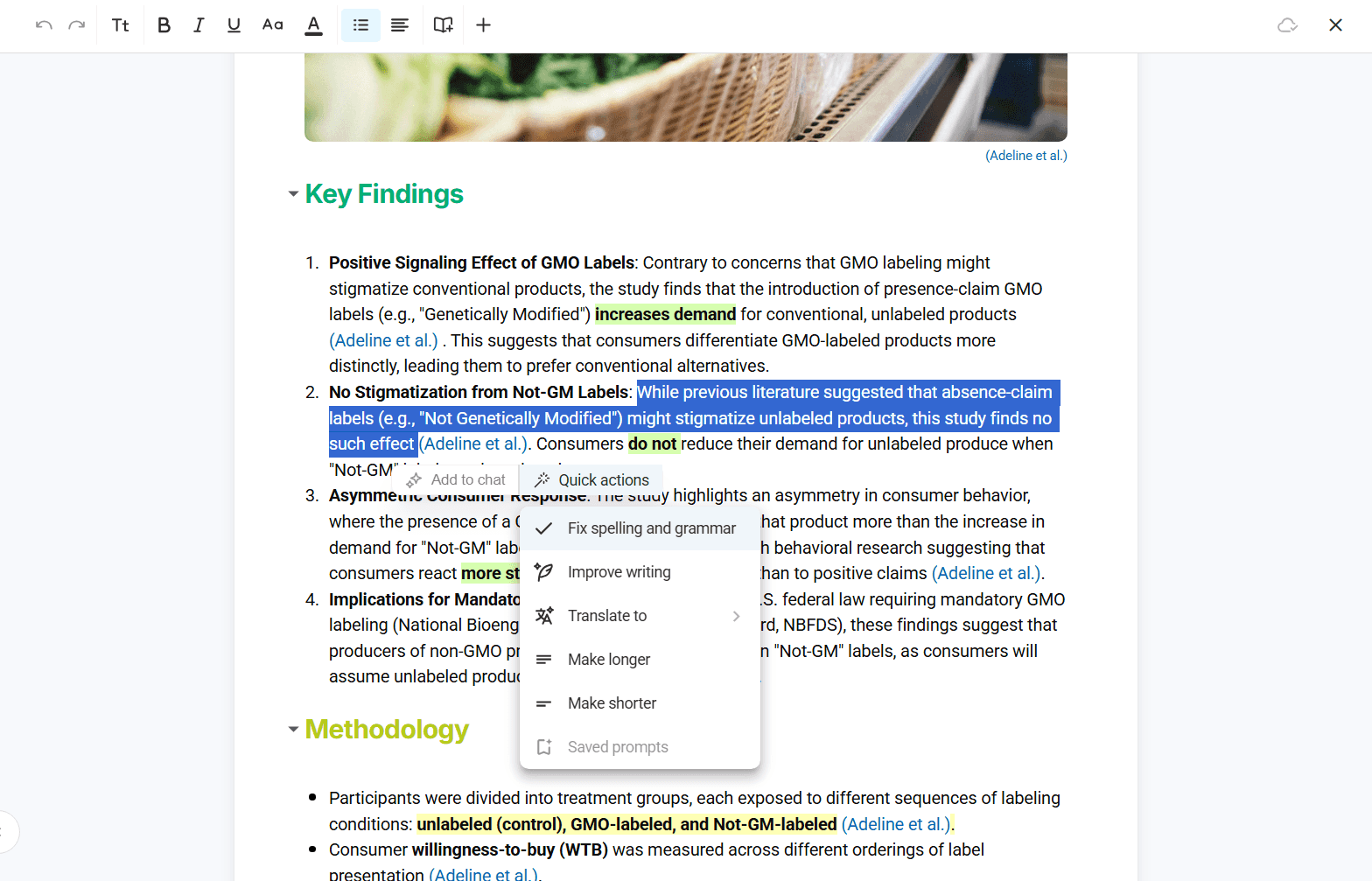
When creating or editing Cards, the interface expands to provide comprehensive editing tools.
- Rich Text Editor: Full formatting toolbar with heading styles, lists, alignment and color options
- AI Assistant Integration: Grammar correction, writing improvement, translation and custom AI queries
- Media Management: Image upload, URL import, Unsplash integration and video support
- Reference Integration: Direct citation addition and academic source linking
- Advanced Tools: Equation editor, table creation, dividers and drag-and-drop reordering
Advanced Interface Features
PDF Viewer Integration
When opening PDFs, Elumity launches a sophisticated viewer with research-integrated capabilities.
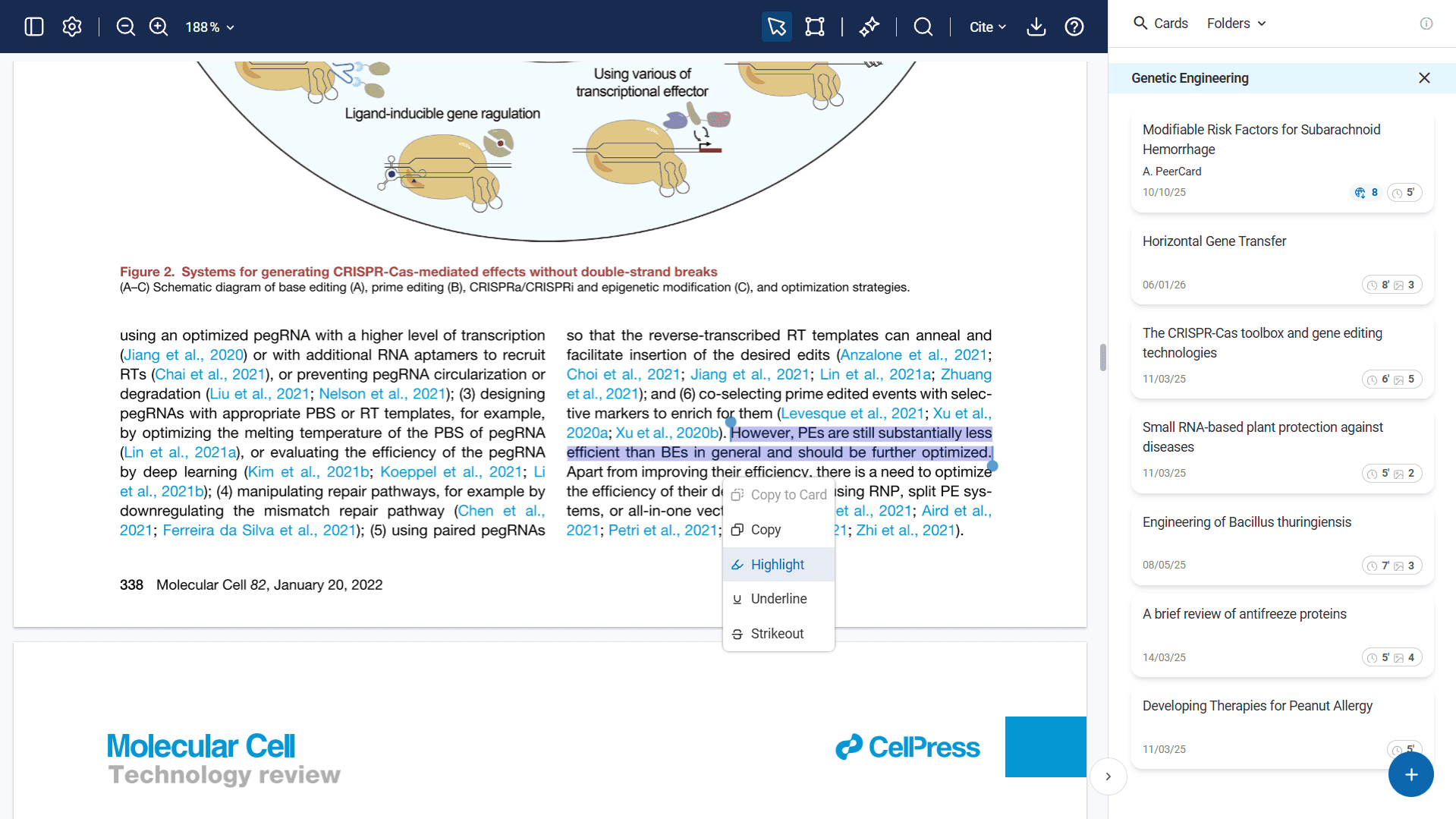
PDF Viewer Components
- Top Toolbar: Zoom controls, view options, search, citation tools and download functions
- Left Panel Toggle: Page thumbnail navigation
- Main Viewing Area: PDF content with annotation capabilities
- Right Sidebar: Integrated Cards panel for real-time knowledge extraction
Annotation and Extraction Tools
- Selection Tools: Text selection, image clipping and content highlighting
- Annotation Options: Highlight, underline, strikeout with color options
- Card Integration: Direct copy-to-card functionality with context menus
- Citation Access: Immediate DOI, BibTeX and reference export without leaving the viewer
Responsive Design Elements
Elumity's interface adapts to different screen sizes and usage patterns:
- Collapsible Sidebars: Hide or show navigation and metadata panels as needed
- Scalable Content Views: Adjust document and Card thumbnail sizes for optimal viewing
- Keyboard Shortcuts: Efficient navigation for power users
- Help Mode Toggle: Overlay guidance for new users learning the interface

Getting Help with Navigation
If you encounter any interface issues or need additional guidance:
- Help Mode: Toggle on-screen guidance tooltips
- Contact Support: Direct assistance for technical issues