Creating a Group Space and Setting Member Roles
Understanding Collaborative Research in Elumity
Group Spaces transform Elumity from an individual productivity platform into a collaborative research environment where teams can share documents, create knowledge together and coordinate academic projects. Unlike private spaces where you work independently, group spaces provide shared access to all Elumity features while maintaining organized permissions and clear collaboration protocols.
Research teams, academic departments, course groups and project collaborators can use group spaces to maintain shared libraries, develop collective knowledge bases and coordinate writing projects while preserving individual accountability and institutional requirements.
When to Create Group Spaces
Consider creating a group space when your research involves ongoing collaboration that benefits from shared access to source materials, coordinated reference management, or collaborative knowledge development.
Research teams working on grants, systematic reviews, or multi-investigator studies benefit from shared document libraries and coordinated citation management. Academic courses can use group spaces to share readings, collaborate on projects and build collective knowledge around course topics.
Long-term collaborative relationships often warrant dedicated group spaces, while short-term projects might be better served through document sharing or other lighter collaboration methods.
Starting Group Space Creation
Navigate to your left sidebar where you see your current spaces listed. Look for the plus icon next to your space counters, which provides options for creating new private or group spaces.
Click the plus icon and select "Group space" to begin the creation process. This opens a comprehensive setup dialog that guides you through naming your space, defining its purpose and configuring initial membership.
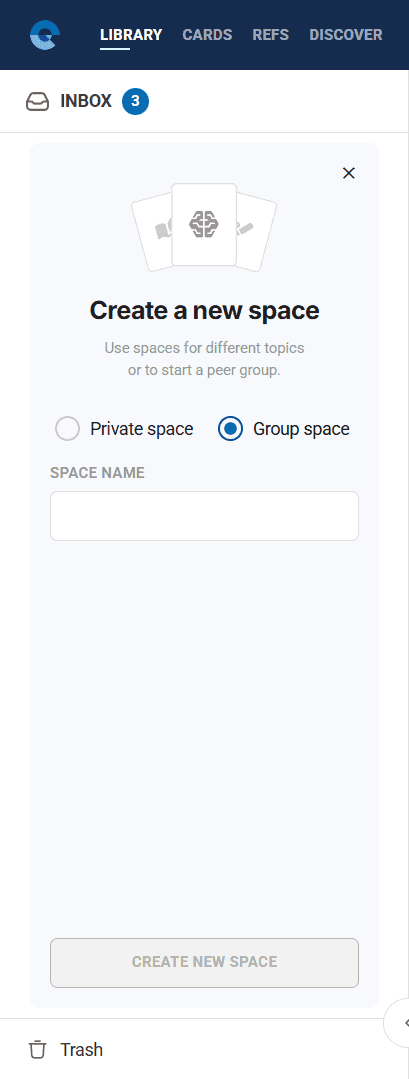
The group space creation process involves more setup than private spaces because it establishes the collaborative foundation that will support your team's research activities.
Configuring Your Group Space
The group space setup dialog includes two main configuration areas: basic space information and member management.
Space Identification and Purpose
Enter a clear, descriptive name for your group space that will make sense to all potential members. Consider including the project name, research topic, or team identifier to ensure clarity over time.
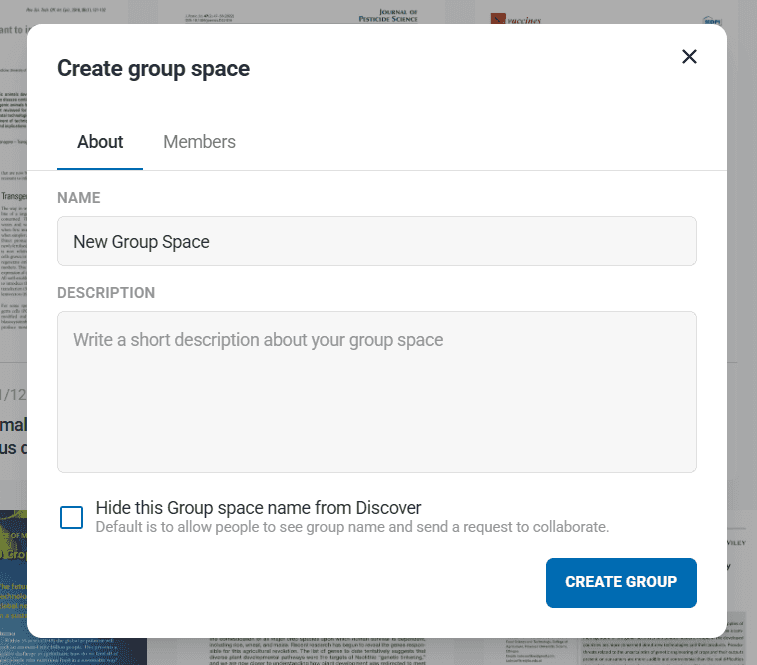
The space name appears throughout Elumity's interface and in notifications, so choose something that remains meaningful as your project evolves. Avoid generic names like "Research Group" in favor of specific identifiers like "Cardiovascular Risk Assessment Study" or "Advanced Organic Chemistry Fall 2024."
Write a concise description that explains the space's purpose and scope. This description helps new members understand the space's focus and helps existing members maintain project focus over time.
Include information about the research topic, collaboration objectives, expected timeline and any relevant institutional affiliations or grant information that provides context for the collaborative work.
Privacy and Discovery Settings
Group spaces include privacy controls that determine their visibility within the broader Elumity community.

The "Hide this Group space name from Discover" option controls whether your group space appears in Elumity's community discovery features. For most research collaborations, especially those involving proprietary research or confidential data, hiding from discovery maintains appropriate privacy.
Academic course groups or public research initiatives might choose visibility in Discover to enable broader community engagement, but consider institutional policies and research confidentiality requirements when making this decision.
Member Management and Invitations
Effective group spaces require thoughtful member management that balances collaboration with appropriate access control.
Adding Existing Elumity Users
The Members tab provides tools for finding and adding colleagues who already use Elumity. Use the search function to find collaborators by name or institutional affiliation.
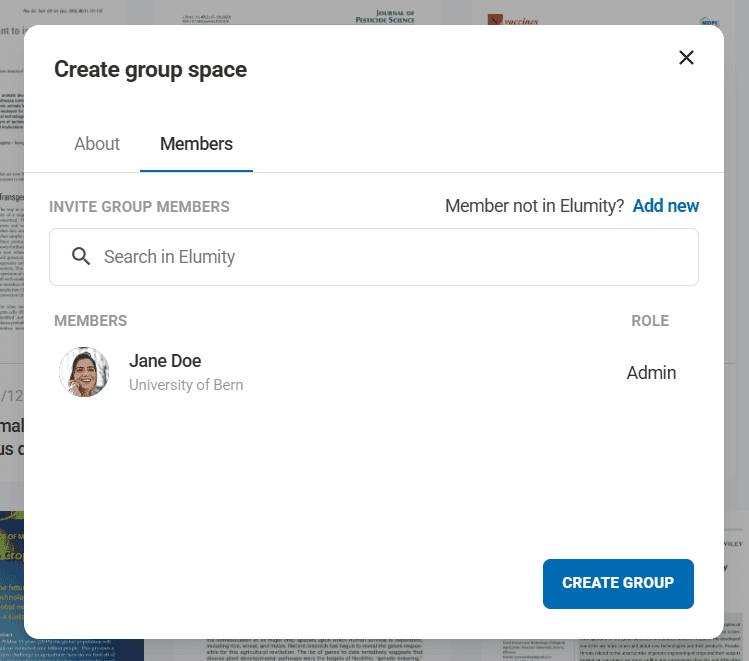
When you find the appropriate colleague, add them to your group space with the appropriate role designation. The system shows member affiliations to help verify you're adding the correct person, particularly important in large academic institutions with similar names.
Inviting External Collaborators
Many research collaborations involve colleagues who don't yet use Elumity. The "Add new" option allows you to invite external collaborators by email address.

Enter the email address and name of your collaborator and Elumity sends an invitation that includes information about your group space and instructions for joining the platform.
Include a personal message with external invitations explaining the collaboration purpose and encouraging prompt response to maintain project momentum.
Role Assignment and Permissions
Group spaces use role-based permissions to ensure appropriate access control while enabling effective collaboration.
Admin roles provide complete control over the group space including member management, space settings and all content operations. Assign admin roles to project leaders, principal investigators, or course instructors who need comprehensive management capabilities.
Member roles provide standard access to space content with the ability to upload documents, create cards, add references and participate in writing projects while maintaining appropriate collaborative boundaries.
Consider your collaboration structure when assigning roles. Research projects typically designate senior researchers or project coordinators as admins, while students and junior collaborators receive member access.
Finalizing Group Space Creation
Review your space configuration including name, description, privacy settings and initial membership before clicking "Create Group" to finalize the setup.
The system creates your group space and sends invitations to external collaborators while immediately providing access to existing Elumity users you've added.
Initial Group Space Configuration
After creating your group space, invest time in establishing the organizational structure and collaboration protocols that will support your team's work.
Folder Organization Setup
Create an initial folder structure that matches your collaborative research needs. Consider organizing folders by research phases, team member responsibilities, document types, or subject areas depending on your project structure.
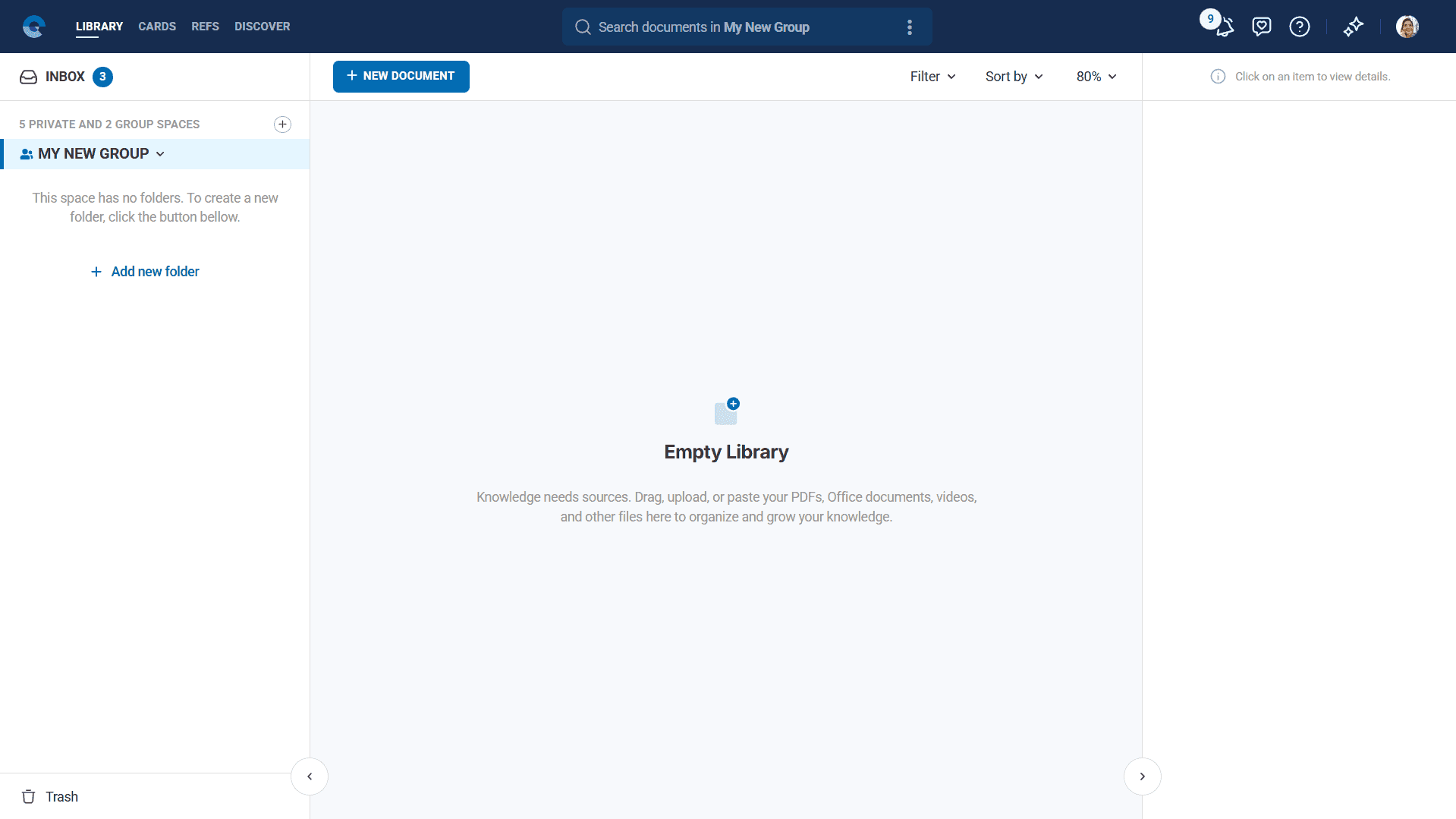
Establish naming conventions and organizational principles early in the collaboration to prevent confusion and ensure all team members can contribute effectively.
Common organizational approaches include folders for shared literature, individual contributions, drafts and revisions, final outputs and administrative materials like meeting notes or project plans.
Collaboration Guidelines
Consider creating an initial document or card that outlines collaboration expectations, file naming conventions, citation standards and communication protocols for your team.
This foundational documentation helps new members integrate quickly and ensures consistent practices as your collaboration develops.
Managing Group Space Evolution
Group spaces evolve as projects develop and team composition changes, requiring ongoing management attention.
Adding Members During Projects
As collaborations expand or new expertise becomes needed, you can continue adding members through the group space settings. Navigate to your group space and access member management tools to add new collaborators.
Provide orientation support for new members, helping them understand the existing organizational structure and collaboration protocols your team has established.
Adjusting Permissions and Roles
Project leadership changes or evolving responsibilities might require role adjustments. Admin users can modify member roles or permissions as collaborative needs change.
Consider the implications of permission changes for ongoing work and communicate changes clearly to all team members to maintain collaborative effectiveness.
Group Space Best Practices
Successful group spaces require ongoing attention to collaboration quality and team coordination.
Communication Integration
While Elumity provides collaborative tools, most research teams benefit from complementary communication channels such as regular meetings, email updates, or messaging platforms to coordinate activities and maintain project momentum.
Use Elumity's collaborative features for content development while maintaining clear communication about project goals, deadlines and individual responsibilities through appropriate channels.
Quality Control
Establish team standards for document quality, citation accuracy and content organization to ensure your shared workspace maintains academic standards appropriate for your research level.
Designate responsibility for quality control and establish review processes that maintain standards while supporting collaborative efficiency.
Backup and Security
Group spaces contain collective intellectual work that represents significant team investment. Ensure your collaboration includes appropriate backup procedures and understands institutional requirements for research data management.
Consider intellectual property implications of shared research materials and ensure your collaboration practices align with institutional policies and grant requirements.
Integration with Individual Workflows
Group spaces complement rather than replace individual research workflows, requiring integration strategies that support both collaborative and independent work.
Personal vs. Shared Content
Develop clear understanding of which materials belong in group spaces versus individual private spaces. Research teams typically share source materials, collaborative analyses and joint outputs while maintaining individual spaces for personal notes, preliminary ideas and unrelated research.
Next Steps
Now that you understand group space creation, explore how to work effectively within collaborative environments:
- Collaboration Best Practices: Discover strategies for maintaining productive academic collaborations within Elumity's platform