Connecting Information with References
Why References Matter in Knowledge Cards
When you create Knowledge Cards from research materials, maintaining the connection to your sources is crucial for academic integrity and future reference. Elumity's reference system ensures that every piece of information in your cards can be traced back to its original source, whether that's a peer-reviewed journal article, a book chapter, or a website.
Think of references in Knowledge Cards as the foundation that makes your insights credible and verifiable. When you later use card content in academic papers or share cards with colleagues, proper citations demonstrate the scholarly rigor behind your work.
Understanding Elumity's Reference Integration
Unlike simple note-taking apps where citations are just text, Elumity creates active connections between your card content and a comprehensive reference database. This means when you cite a source in a card, you're linking to a complete bibliographic record that includes DOI information, publication details and even connections to the actual PDF files in your library.
This integration works across all Elumity modules. A reference you add to a Knowledge Card becomes available connects to the same source information you might have in your Files or References modules.
Before Adding References to Cards
Make sure you understand what type of source you're citing. Is it a peer-reviewed journal article that might be found in academic databases? A book or book chapter? A website or blog post? A government document or technical report? Different source types require different approaches in Elumity's reference system.
If you're working from PDF documents already in your Elumity Files, check whether those documents already have reference information attached. This can save you time and ensure consistency across your cards.
Adding Academic Journal References
The most common references in academic Knowledge Cards are journal articles. Elumity provides direct access to major academic databases to ensure accurate citation information.
Searching Academic Databases
While editing a Knowledge Card, position your cursor where you want to insert a citation. Click the "Ref" button in the toolbar to open the reference dialog.
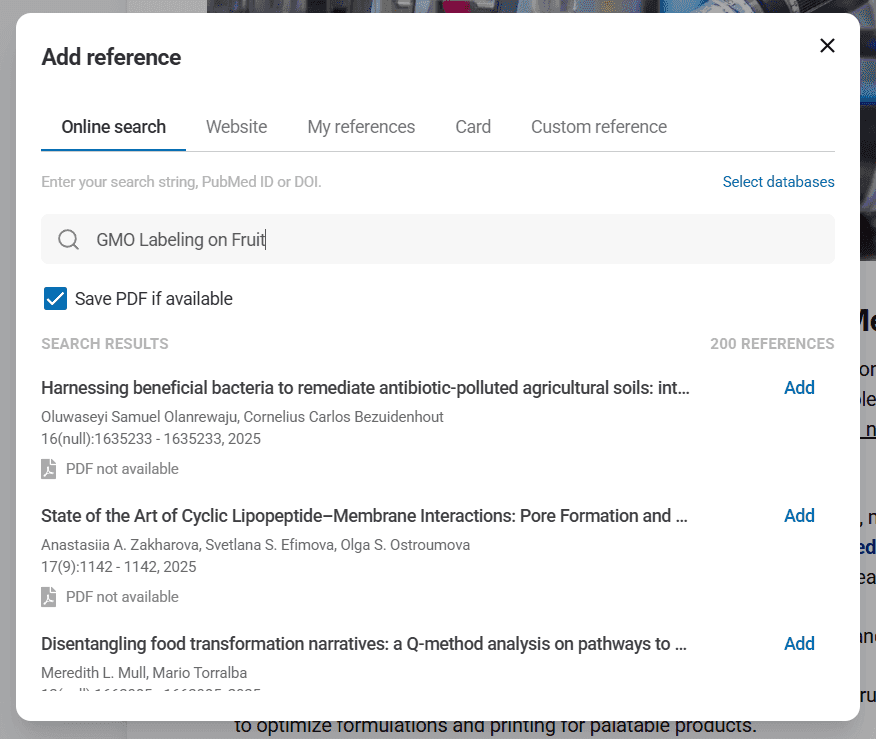
By default, Elumity searches OpenAlex, which indexes millions of academic papers across disciplines. Type specific search terms related to the paper you want to cite. Use author names, distinctive title words, or specific topics rather than generic terms.
For example, instead of searching "machine learning," search "machine learning medical diagnosis Zhang 2023" if you're looking for a specific paper by Zhang published in 2023 about machine learning applications in medical diagnosis.
The search results will show matching papers with their titles, authors, publication years and journal names. Look for the exact paper you need and click on it to add it to your card's reference list.
Importing from Reference Files
If you already have a collection of references in BibTeX (.bib) or RIS (.ris) format from other reference managers, you can import them directly into Elumity.
Click "Import from file" in the reference dialog and select your citation file. Elumity will process the file and make all the references available for use in your cards. This is particularly helpful when transitioning from other reference management systems or when collaborating with researchers who use different tools.
Adding Website and Non-Academic References
Not all valuable sources are academic journal articles. Websites, government documents, news articles and other materials also deserve proper citation in your Knowledge Cards.
Website Citations
Click "Website" in the reference dialog to create citations for web-based sources. Enter the page title exactly as it appears on the website, then paste the complete URL.

Elumity automatically captures the access date, which is important for web sources that might change over time. If you know the author and publication date, add those details as well for a more complete citation.
Be selective about website sources, especially for academic work. Government websites (.gov), educational institutions (.edu) and established organizations provide more credible information than personal blogs or commercial sites.
Custom Reference Creation
For sources that don't fit standard categories, use "Custom Reference" to manually enter citation information. This is useful for:
- Book chapters from edited volumes
- Conference presentations
- Unpublished manuscripts or preprints
- Government reports
- Technical documentation
- Personal communications or interviews
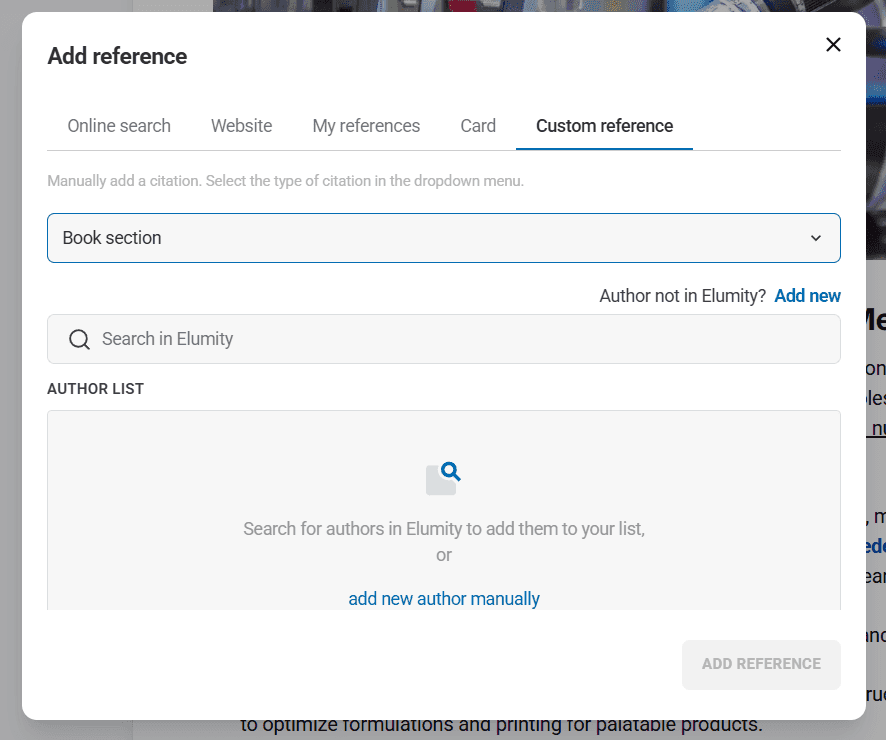
Select the appropriate reference type from the dropdown menu, then fill in the relevant fields. Different reference types have different required fields - a book needs publisher information while a journal article needs volume and page numbers.
Referencing Other Cards
Sometimes your Knowledge Cards build on insights from other cards you've created. Use "Card Reference" to cite other cards in your collection. This creates connections between related ideas and helps build a web of interconnected knowledge.
When you reference another card, Elumity maintains a link so you can easily navigate between related concepts. This is particularly valuable when you're building complex arguments that span multiple cards or when you want to show how your thinking has evolved over time.
Managing References Within Card Content
Once you've added references to your card, you need to integrate them effectively with your content. Elumity provides several ways to connect specific information to its sources.
Inline Citations
The most common approach is inline citation, where you reference sources immediately after the information they support. After writing a statement in a card that comes from a source, position your cursor at the end of the sentence and add the reference.
For example, you might write: "Recent studies have shown a 15% improvement in diagnostic accuracy when machine learning algorithms are applied to medical imaging." Then add the reference to the specific study that reported this finding.

Reference Blocks
For longer quotations or when you want to clearly separate source material from your own analysis, create dedicated reference blocks. Use the block quote formatting for direct quotations and add the reference immediately after the quoted material.
This approach works well when you're comparing multiple sources or when you want to present several viewpoints on a topic before adding your own synthesis.
Viewing All Card References
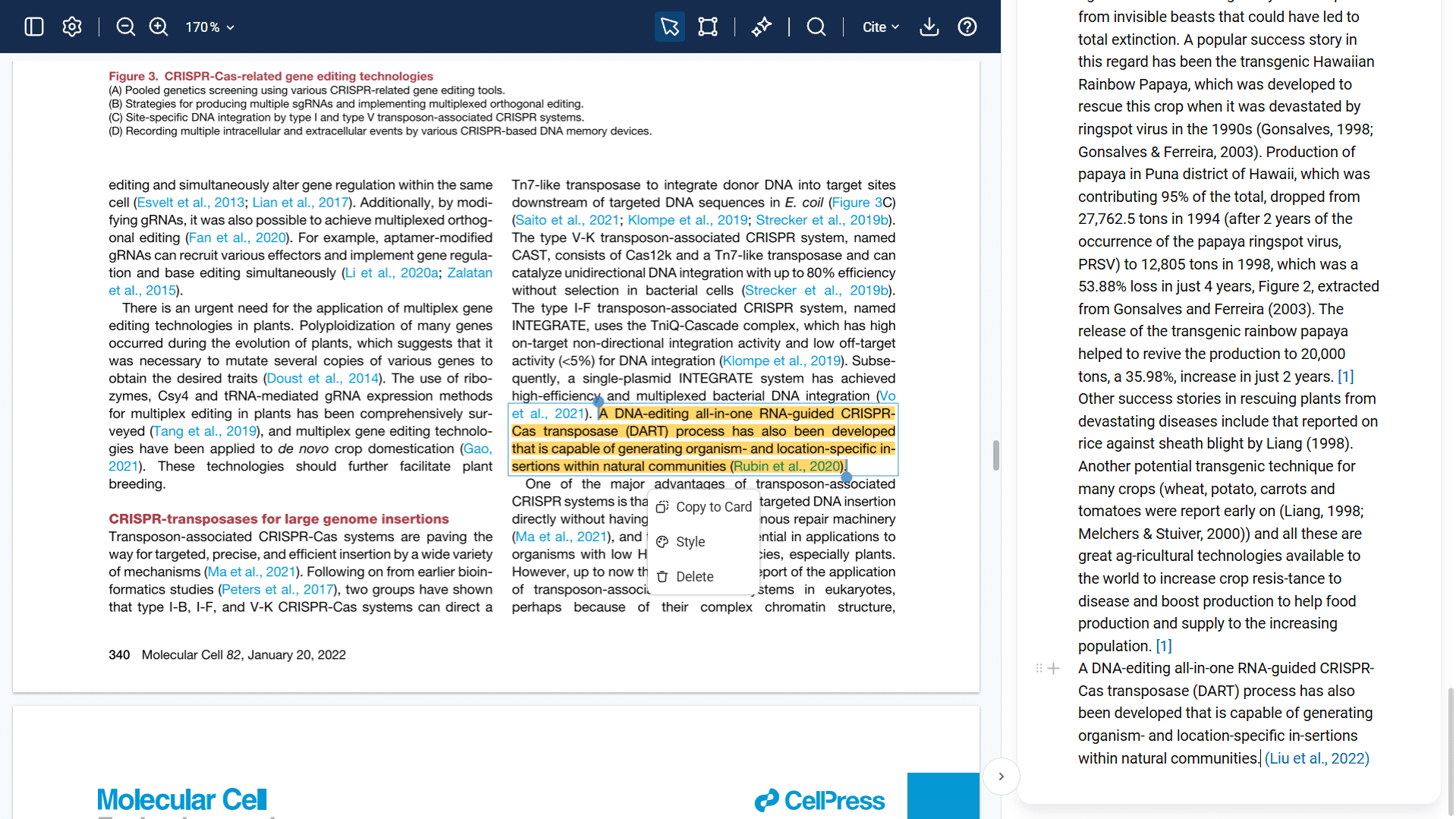
Elumity automatically collects all references you add to a Knowledge Card and makes them accessible through a dedicated references sidebar. At any time while viewing or editing a card, you can access this complete reference list to review all your sources.

This sidebar appears on the right side of your card and displays every reference you've cited, regardless of where in the card content you added them. You can click on any reference in this sidebar to view its complete citation details, access the original source, or modify the reference information.
This centralized reference view is particularly helpful when you're working on longer cards with multiple sources, as it provides a quick overview of all your citations without having to scroll through the entire card content.
Citation Style Management
Different academic disciplines use different citation formats. Elumity supports over 10,000 citation styles, ensuring your cards can match whatever format you need.
Selecting Citation Styles
Access citation style options through the reference management interface. You can set a default style for all your cards or customize styles for specific cards depending on their intended use.
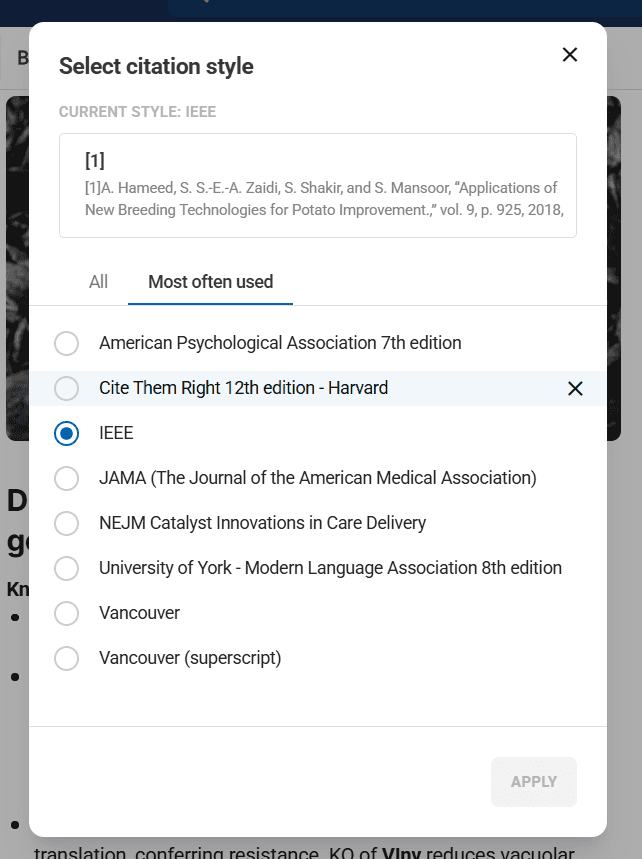
Common styles include APA (Psychology and Social Sciences), MLA (Literature and Humanities), Chicago (History), IEEE (Engineering) and various medical formats like JAMA style for medical research.
Automatic Formatting Updates
When you change citation styles, Elumity automatically reformats all citations in your card. This is particularly helpful when you're repurposing card content for different academic contexts or when collaborating with researchers who use different citation formats.
Linking References to PDF Sources
One of Elumity's most powerful features is the connection between references and actual document files in your library.
Automatic PDF Linking
When you add a reference that matches a PDF already in your library, Elumity automatically creates the connection. This means clicking on a reference in your card can take you directly to the source document.
Look for the small PDF icon next to references to see which ones are linked to documents in your library. This visual indicator helps you quickly identify which sources you have full access to.
Manual PDF Linking
If you have PDF documents that aren't automatically linked to their references, you can create these connections manually. This often happens with older documents or PDFs that don't have complete metadata.
In the References module, find the citation you want to link and use the "Link to PDF" option to select the corresponding document from your library. Once linked, this connection works across all modules - in cards and in the reference manager.
Working with DOI and Academic Identifiers
Digital Object Identifiers (DOIs) provide permanent links to academic publications. Elumity leverages DOIs to ensure accurate citations and provide direct access to publisher pages.
DOI-Based Citation
When possible, use DOI information for your references. This ensures the most accurate and permanent citation information. Many academic database searches in Elumity automatically include DOI data when available.
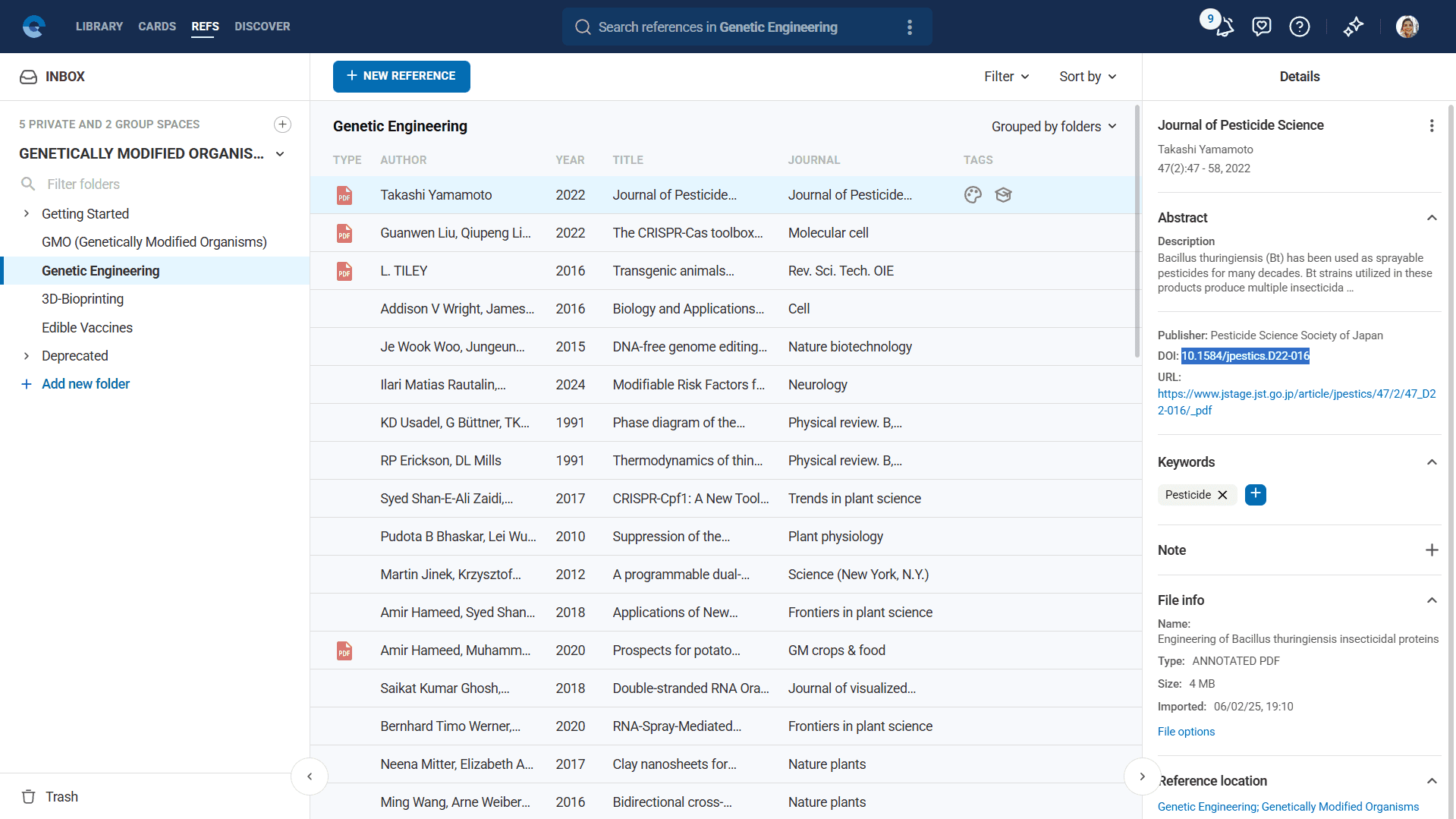
DOIs also enable Elumity to automatically update citation information if publication details change, ensuring your references remain accurate over time.
Publisher Access
References with DOIs provide direct links to publisher pages, making it easy to access the original source or check for updates like corrections or retractions. Click the "Go to publisher" option in the reference details to open the official publication page.
Reference Organization and Management
As you create more cards with references, organizing your citation library becomes important for efficiency and consistency.
Reference Deduplication
Elumity helps prevent duplicate references by suggesting existing citations when you search for sources you've already added. Pay attention to these suggestions to maintain a clean reference library.
If you do end up with duplicate references, the reference management system provides tools for merging duplicates and maintaining consistency across all your cards.
Verifying Reference Accuracy
Accurate references are crucial for academic credibility. Elumity provides several tools to help ensure your citations are correct.
Cross-Database Verification
Use multiple database searches to verify reference information, especially for important citations. Compare results from OpenAlex and PubMed to ensure consistency in author names, publication dates and other details.
Source Accessibility
Regularly check that your referenced sources remain accessible. Web links can break over time and journal access can change. Elumity helps by maintaining local copies of PDFs when possible and flagging broken links.
Citation Format Checking
Use Elumity's automatic formatting features to ensure your citations meet academic standards. The system flags common formatting issues and suggests corrections based on the selected citation style.
Best Practices for Reference Integration
Be Selective About Sources
Not every piece of information needs a reference, but claims, statistics, methodologies and theoretical frameworks should be properly cited. Focus on citing information that readers might want to verify or explore further.
Maintain Reference Quality
Use high-quality, credible sources appropriate to your academic level and discipline. Peer-reviewed journal articles carry more weight than blog posts or news articles in academic contexts.
Update References Regularly
Periodically review your references to ensure links still work and information remains current. This is especially important for web-based sources and preprint citations that might be updated.
Consider Reference Accessibility
When possible, choose references that your intended audience can access. Open access articles are preferable to those behind paywalls when the quality is equivalent.
Troubleshooting Common Reference Issues
Missing DOI Information
If a reference doesn't include DOI information, try searching for the article in multiple databases or checking the publisher's website directly. Some older articles have DOIs that weren't included in original database entries.
Inconsistent Author Names
Academic databases sometimes list author names differently (Smith, J. vs. Smith, John vs. Smith, J.A.). Choose the most complete and consistent format and stick with it across your reference library.
Broken Web Links
For web references with broken links, try using archived versions from the Internet Archive's Wayback Machine. Update your reference to include both the original URL and the archived version.
Database Access Issues
If you can't access certain databases through Elumity, check with your institution's library services. Many academic institutions provide enhanced database access that can be configured with Elumity.
Bibliography Generation
Elumity automatically generates properly formatted bibliographies based on the references in your cards. This ensures consistency between your research notes and final publications.
Building a Personal Knowledge Network
Over time, your referenced Knowledge Cards create a personal academic knowledge network that reflects your research interests and expertise areas.
Citation Patterns
Analyzing your citation patterns helps identify research themes, frequently consulted authors and potential gaps in your knowledge base. This information guides future reading and research directions.
Research Relationships
References in Knowledge Cards reveal relationships between different research areas and help you identify interdisciplinary connections that might not be obvious from individual papers.
By maintaining rigorous reference practices in your Knowledge Cards, you create a reliable foundation for all your academic work. These properly cited cards become valuable resources that support everything from course assignments to dissertation research, ensuring your insights remain credible and verifiable throughout your academic career.
Next Steps
Now that you understand reference integration in Knowledge Cards, explore related topics:
Learn how to optimize your research workflow by creating cards directly from PDF sources while maintaining proper citations throughout the process.
Discover how to leverage Elumity's AI features to enhance your card content while maintaining academic integrity in your citations and analysis.